

Having trouble with your computer speakers? You’re not alone. Sound issues are one of the most common tech problems, and they can be frustrating when you’re trying to watch a video, attend a meeting, or just enjoy your favorite music.
The good news? Most speaker issues are easy to fix. In this guide, we’ll walk you through simple steps to troubleshoot your computer speakers and get the sound back.
Step 1: Check the Basics
Before diving into complex fixes, double-check the following:
- Volume: Make sure your computer and speaker volume aren’t muted or set too low.
- Cables: If you’re using wired speakers, check that the cables are properly plugged in and not damaged.
- Power: Confirm that the speakers are turned on and receiving power.
These might sound obvious, but they solve the problem in many cases.
Step 2: Choose the Correct Output Device
Sometimes your computer sends sound to the wrong device. Here’s how to check:
For Windows:
- Right-click the sound icon in the taskbar.
- Select “Sounds” > “Playback” tab.
- Choose your speaker and click “Set Default”.
For Mac:
- Go to System Settings > Sound.
- Under Output, select your speaker.
Step 3: Restart Audio Services
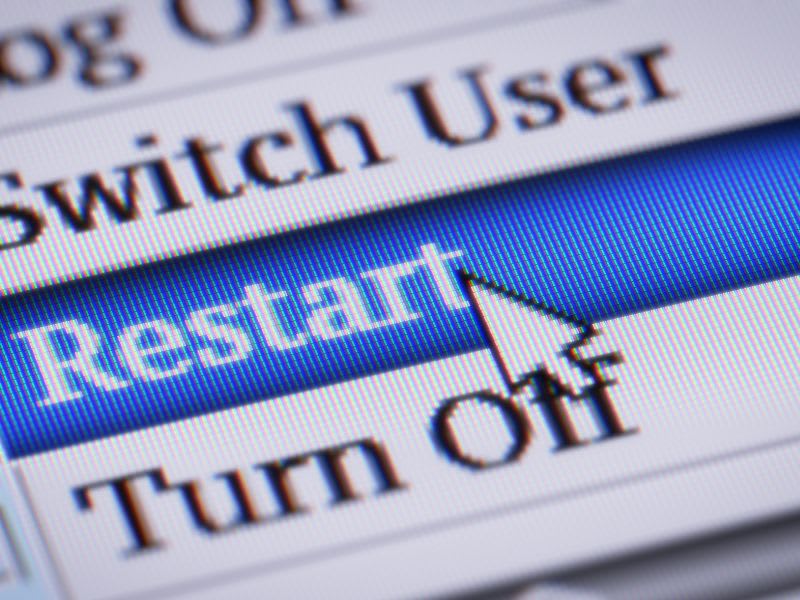
If you’re still not hearing anything:
Windows:
- Press Windows + R, type services.msc, and hit Enter.
- Find Windows Audio, right-click, and choose Restart.
This restarts your audio engine and often resolves bugs.
Step 4: Update or Reinstall Audio Drivers

Outdated or corrupted drivers can cause speaker issues.
- Right-click Start > Device Manager.
- Expand “Sound, video and game controllers”.
- Right-click your sound device and choose “Update driver”.
Still not working? Uninstall the driver, restart your PC, and Windows will reinstall it automatically.
Step 5: Test with Another Device
Try your speakers on another computer or plug in different speakers into your PC. This helps you find out whether the issue is with the speakers or the computer itself.
Step 6: Check for Bluetooth Conflicts (For Wireless Speakers)

If you’re using Bluetooth speakers:
- Make sure they’re properly paired.
- Disconnect any other Bluetooth audio devices.
- Restart your Bluetooth connection.
Common Speaker Problems and How to Fix Them
Problem: Only one speaker is working
- Check balance settings under audio options
- Inspect cable or port damage
Problem: Sound is distorted or crackling
- Try a different audio port or cable
- Check for interference from other devices
Problem: Volume is too low
- Adjust system and speaker volume
- Disable “Loudness Equalization” under sound enhancements
When to Call a Technician
If you’ve tried all the steps above and your sound still isn’t working, it may be a hardware issue such as:
- Damaged speaker components
- Faulty audio ports
- Sound card or motherboard issues
In these cases, it’s best to call a professional.
Need Help? Safemode Computer Service Has You Covered
If you’re in Sydney and can’t get your computer speakers to work, let the experts at Safemode Computer Service take a look. Our technicians can diagnose and fix speaker issues quickly, whether it’s a software glitch or hardware failure.
Visit https://safemode.com.au/ to learn more or contact us directly for fast support.
Conclusion
Computer speaker issues are usually fixable with a few simple steps. Check your connections, restart audio services, and update drivers. If all else fails, Safemode Computer Service is here to help you get your sound back — fast and hassle-free.


