

If your computer breaks or gets lost, you could lose all your files — photos, documents, school work, and more. That’s why backing up your computer is important. It protects your data in case something goes wrong.
This guide will show you how to back up your computer step by step. We’ll explain the best methods, tools you can use, and how to keep your backups safe. Whether you use Windows or Mac, we’ll keep it simple and easy to follow.
And if you need help, Safemode Computer Service is here to assist with backup setup or data recovery.
Why Backing Up Your Computer Is Essential
Things can go wrong with computers — they crash, get viruses, or stop working without warning. If that happens and you don’t have a backup, you could lose everything.
Backing up means saving a copy of your important files somewhere safe. This way, if something happens to your computer, you won’t lose your photos, documents, or work.
Here are a few common reasons people lose data:
- A computer suddenly stops working
- Files are deleted by mistake
- Viruses or ransomware lock or destroy files
- A laptop gets lost or stolen
Having a backup gives you peace of mind. Even if something goes wrong, you can get your files back.
Understanding the Types of Backups
There are a few ways to back up your computer. Knowing the difference helps you choose what’s right for you.
Full Backup
This is a complete copy of everything on your computer — all your files, photos, apps, and settings. It takes more time and space but gives full protection.
Incremental Backup
This only saves the new or changed files since your last backup. It’s faster and uses less space. You’ll need the last full backup to restore everything.
Differential Backup
This saves all changes since your last full backup — not just the newest ones. It’s a bit slower than incremental but faster to restore.
In simple terms:
- Full = everything copied
- Incremental = only new changes
- Differential = all changes since the last full copy
You don’t need to remember all the details — just know that these methods help you save space and time while keeping your files safe.
Backup Methods: Which One Should You Use?

There are a few ways to backup your computer. Each one has pros and cons. You can choose one or combine a few for extra safety.
1. Cloud Backup
This means saving your files online using services like Google Drive, Dropbox, or OneDrive.
Why it’s good:
- Your files are safe even if your computer is lost or damaged
- You can access them from any device
What to know:
- You need internet to back up and restore
- Free plans have storage limits
2. External Hard Drives or SSDs
These are physical devices you plug into your computer.
Why it’s good:
- Fast and reliable
- One-time cost
What to know:
- Can be lost or damaged like your computer
- You have to remember to plug it in and run the backup
3. USB Flash Drives
Good for small backups or a few files.
Why it’s good:
What to know:
- Not great for large backups
- Easy to misplace
4. Network Storage (NAS)
This is like a personal cloud at home or in the office.
Why it’s good:
- Always available on your network
- Great for homes with many devices
What to know:
- Can be expensive and needs setup
Tip: For better protection, use both cloud and external backups. That way, you’re covered even if one fails.
How To Back Up a Windows Computer
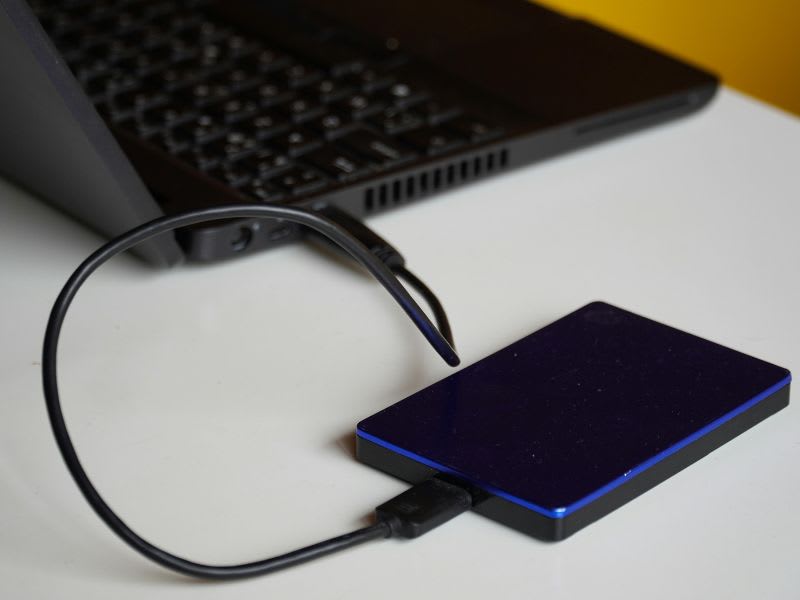
Windows has built-in tools that make backing up easy. You don’t need special software to get started.
Option 1: Use File History (Windows 10 & 11)
- Plug in an external hard drive.
This is where your backup will be saved. - Go to Settings > Update & Security > Backup.
- Click “Add a drive” and choose your external drive.
- Turn on “Automatically back up my files.”
Windows will now back up your files regularly. You can change what gets backed up under “More options.”
Option 2: Use Backup and Restore (Windows 7 tool)
This tool is still available in Windows 10 and 11.
- Go to Control Panel > Backup and Restore (Windows 7).
- Click “Set up backup.”
- Choose where to save your backup (external drive is best).
- Choose what to back up — you can let Windows decide or pick files yourself.
- Set how often you want to back up (daily is a good choice).
- Click “Save settings and run backup.”
Recommended Backup Software (Optional)
If you want more features, here are some beginner-friendly tools:
- Macrium Reflect Free
- AOMEI Backupper
- EaseUS Todo Backup
These tools can create full system backups and let you schedule automatic backups.
How To Back Up a Mac Computer
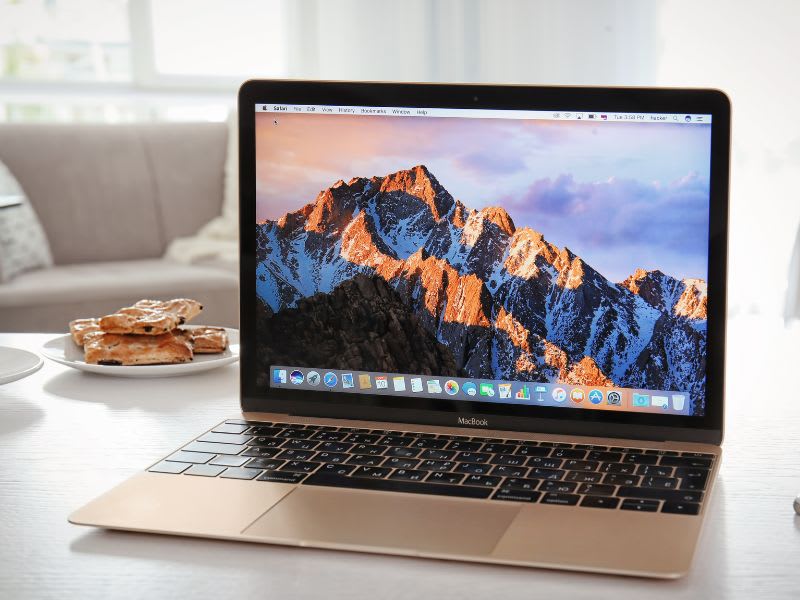
Backing up a Mac is easy thanks to a built-in tool called Time Machine. You just need an external hard drive.
Option 1: Use Time Machine
- Connect an external hard drive to your Mac.
- When asked, choose “Use as Backup Disk.”
- Time Machine will start backing up your system automatically.
- You can check the backup status by clicking the Time Machine icon in the top menu bar.
Tip: Time Machine saves hourly backups for 24 hours, daily backups for a month, and weekly backups until the disk is full.
Option 2: Use iCloud for Important Files
You can also store files in iCloud Drive so they’re always saved online.
- Go to System Settings > Apple ID > iCloud
- Turn on iCloud Drive and choose which folders to sync (like Desktop and Documents)
What to know:
- iCloud is great for documents and photos
- It’s not a full system backup like Time Machine
- Free iCloud plans come with limited storage
Other Backup Tools for Mac (Optional)
Want more control or want to clone your Mac? Try these:
- Carbon Copy Cloner
- SuperDuper!
These tools can create full backups and let you schedule them
What Files Should You Back Up?
You don’t need to back up everything — just the files you don’t want to lose.
Here’s what to focus on:
Personal Files
- Documents: Word files, PDFs, spreadsheets
- Photos and Videos: Family pictures, travel memories, school projects
- Music and Audio: Saved playlists, audio recordings
- Downloads Folder: Anything important you saved from the internet
Work or School Files
- Reports, presentations, assignments, and anything you’re working on
Email and Contacts
- If you use Outlook or Apple Mail, export your emails and contacts
Browser Bookmarks and Passwords
- Many browsers let you sync this to the cloud, or export it as a file
App Data or Game Saves
- Some apps or games save files locally — check if you need to copy them manually
Tip: Most backup tools will let you choose folders to include, or you can back up your whole user profile to keep it simple.
Automate Your Backups for Peace of Mind
Backing up your files once is good — but setting it to run automatically is even better. That way, you don’t have to remember to do it yourself.
On Windows:
If you’re using File History or Backup and Restore, you can set it to back up daily or even hourly.
- Go to Settings > Update & Security > Backup > More Options
- Under “Back up my files,” choose how often and how long to keep them
Most backup software also lets you schedule backups. Just open the software, look for a schedule or auto backup option, and follow the prompts.
On Mac (Time Machine):
Time Machine backs up automatically once it’s turned on. You don’t need to do anything extra. It will:
- Back up every hour for the past 24 hours
- Keep daily backups for a month
- Save weekly backups until your drive is full
Cloud Services:
Apps like Google Drive, OneDrive, and Dropbox sync your files automatically. As long as you’re connected to the internet, any changes you make will be saved online.
Why automation matters:
- You won’t forget to back up
- You’re always protected, even if something goes wrong unexpectedly
Best Practices for Safe and Reliable Backups
Backing up is great — but doing it the right way makes it even better. Here are some smart habits to follow:
1. Follow the 3-2-1 Rule
- 3 copies of your files
- 2 different types of storage (like an external drive and the cloud)
- 1 copy stored offsite (not at your home or office)
This way, you’re covered even if one backup fails or your devices are damaged.
2. Encrypt Sensitive Files
If you’re backing up personal or work data, use a backup tool that offers encryption. This keeps your files safe, even if someone gets access to the drive.
3. Check Your Backups Regularly
Make sure your backup is actually working. Try opening a few files from your backup every now and then to confirm everything’s saved correctly.
4. Label Your Drives
If you’re using external drives, label them clearly. For example:
“Backup – Laptop – March 2025”
It helps you stay organized and know which drive is most up to date.
5. Update Your Backup Plan
Any time you add new files, start a new project, or switch devices, update your backup routine to include those changes.
Need Help Backing Up? Safemode Computer Service Can Help
Setting up a backup sounds simple — but sometimes, it’s easier to let an expert handle it. If you’re not sure where to start, or if you want to make sure your backup is done right, we’re here to help.
At Safemode Computer Service, we help people back up their computers safely and properly. Whether you need help choosing the right method, setting up automatic backups, or recovering lost data, our team is ready.
Don’t wait until it’s too late. We can:
- Set up cloud and local backups for Windows or Mac
- Recommend the best tools for your needs
- Recover data from broken or wiped computers
- Provide friendly, easy-to-understand support
→ Contact us today and let’s protect your files before something goes wrong.
Frequently Asked Questions (FAQs)
Q: How often should I back up my computer?
A: Back up at least once a week — or every day if you work on your computer often. You can set it to run automatically so you don’t forget.
Q: Is cloud backup better than using a hard drive?
A: Both have benefits. Cloud backup is great for convenience and off site safety. Hard drives are fast and don’t rely on the internet. Using both gives the best protection.
Q: Can I back up everything, including apps and system settings?
A: Yes. Tools like Time Machine (Mac) or Macrium Reflect (Windows) can back up your entire system — not just files, but also settings and programs.
Q: What’s the safest way to store my backups?
A: Keep one backup on an external drive and one in the cloud. Store the external drive in a safe place, and encrypt your backups if they contain personal or sensitive data.
Conclusion
Backing up your computer doesn’t have to be hard. Whether you use a cloud service, an external drive, or both — the most important thing is to get started. A good backup gives you peace of mind, knowing your files are safe even if something goes wrong.
Start with one method, keep it simple, and build from there. And if you need help, Safemode Computer Service is always ready to guide you through it.
